# Curity Phantom Token Auth Policy
Authenticate requests with Phantom Tokens issued by Curity. The payload of the
Phantom JWT token, if successfully authenticated, with be on the
`request.user.data` object accessible to the runtime.
## Configuration
The configuration shows how to configure the policy in the 'policies.json' document.
```json title="config/policies.json"
{
"name": "my-curity-phantom-token-inbound-policy",
"policyType": "curity-phantom-token-inbound",
"handler": {
"export": "CurityPhantomTokenInboundPolicy",
"module": "$import(@zuplo/runtime)",
"options": {
"cacheDurationSeconds": 600
}
}
}
```
### Policy Configuration
- `name` <string> - The name of your policy instance. This is used as a reference in your routes.
- `policyType` <string> - The identifier of the policy. This is used by the Zuplo UI. Value should be `curity-phantom-token-inbound`.
- `handler.export` <string> - The name of the exported type. Value should be `CurityPhantomTokenInboundPolicy`.
- `handler.module` <string> - The module containing the policy. Value should be `$import(@zuplo/runtime)`.
- `handler.options` <object> - The options for this policy. [See Policy Options](#policy-options) below.
### Policy Options
The options for this policy are specified below. All properties are optional unless specifically marked as required.
- `clientId` **(required)** <string> - The client ID of the Curity application.
- `clientSecret` **(required)** <string> - The client secret of the Curity application.
- `introspectionUrl` **(required)** <string> - The introspection URL of the Curity application.
- `cacheDurationSeconds` <number> - The duration in seconds to cache the introspected response. Defaults to `600`.
## Using the Policy
Adding the Curity Phantom Token Pattern to your route is trivial. Before getting
started, make sure that you have an instance of
[the Curity Identity Server](https://curity.io/) up and running.
### Setup the Curity Identity Server
Getting the Curity Identity Server up and running is quick. Follow the
[Getting Started Guide](https://curity.io/resources/getting-started/) to install
and configure the server.
#### Introspection
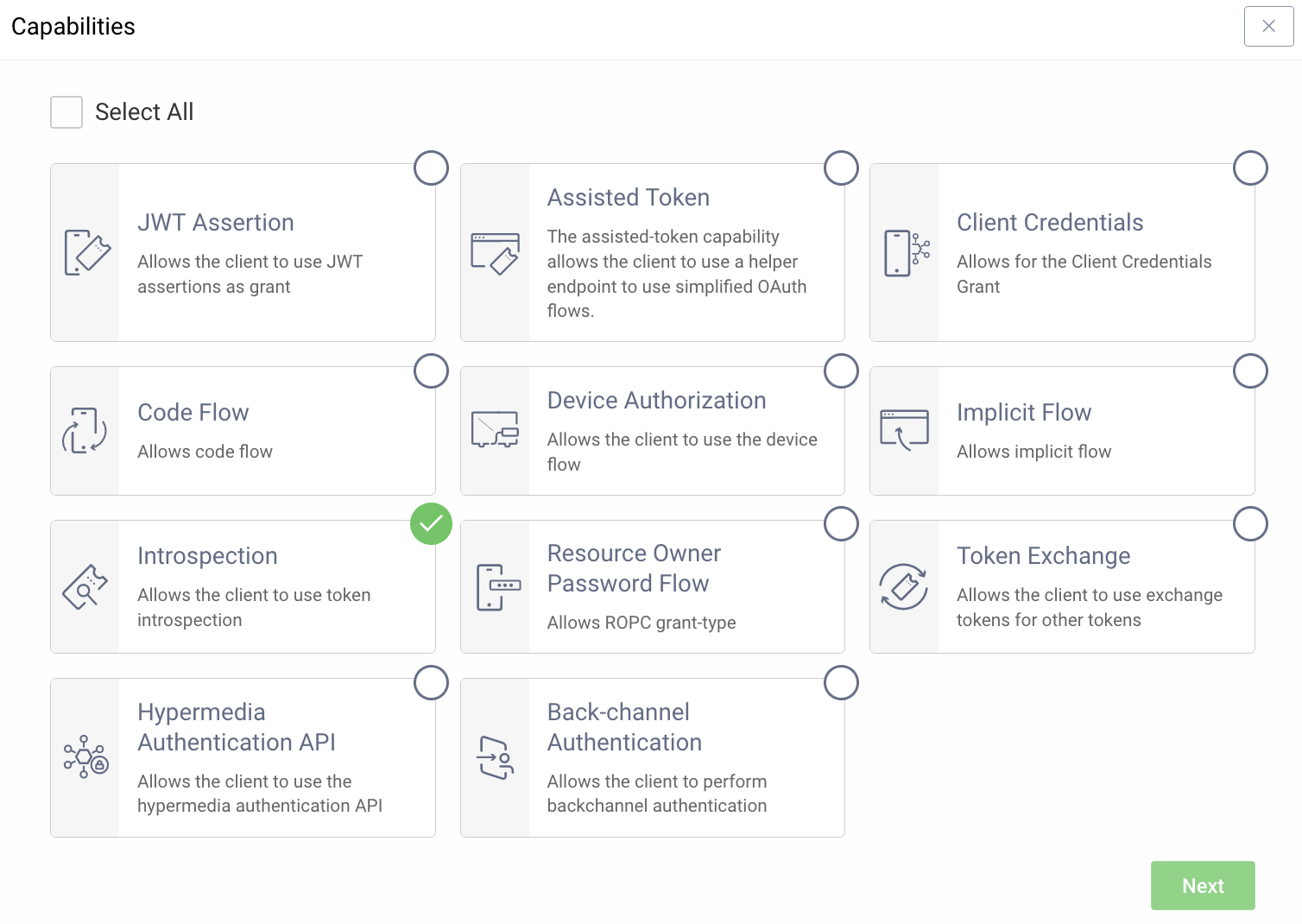
In addition to the instructions outlined in the Getting Started Guide a client
that enable introspection is needed. Typical recommendation for this is to
create a new separate client that only enables the introspection capability.
#### Exposing the Runtime
Depending on where the Curity Identity Server is deployed you might have to
expose the runtime node using a reverse proxy. One option is to use
[ngrok](https://curity.io/resources/learn/expose-local-curity-ngrok/) but other
solutions could also be used.
#### OAuth Tools
With the server up and running and available you can use
[OAuth Tools](https://oauth.tools/) to test the configuration and make sure that
you are able to obtain a token. If an opaque token is possible to obtain you are
good to continue.
### Set Environment Variables
Before adding the policy, there are a few environment variables that will need
to be set that will be used in the Curity Phantom Token Policy.
1. In the [Zuplo Portal](https://portal.zuplo.com) open the **Environment
Variables** section in the **Settings** tab.
2. Click **Add new Variable** and enter the name `INTROSPECTION_URL` in the name
field. Set the value to URL endpoint of the Curity Identity Server that
handles introspection. Ex.
`https://idsvr.example.com/oauth/v2/oauth-introspect`
3. Click **Add new Variable** again and enter the name `CLIENT_ID` in the name
field. Set the value to ID of the client that you added the introspection
capability to.
4. Click **Add new Variable** again and enter the name `CLIENT_SECRET` in the
name field. Set the value to the secret of the client that you added the
introspection capability to. **Make sure to enable `is Secret?`.**
### Add the Curity Phantom Token Policy
The next step is to add the Curity Phantom Token Auth policy to a route in your
project.
The next step is to add the Curity Phantom Token Auth policy to a route in your
project.
1. In the [Zuplo Portal](https://portal.zuplo.com) open the **Route Designer**
in the **Files** tab then click **routes.oas.json**.
2. Select or create a route that you want to authenticate with the Curity
Phantom Token Pattern. Expand the **Policies** section and click **Add
Policy**. Search for and select the **Curity Phantom Token Auth** policy.
3. Add the following to options:
```json
"clientId": "$env(CLIENT_ID)",
"clientSecret": "$env(CLIENT_SECRET)",
"introspectionUrl": "$env(INTROSPECTION_URL)",
```
The policy configuration should now look like this:
4. Click **OK** to save the policy.
5. Click **Save All** to save all the configurations.
### Test the Policy
Head over to [OAuth Tools](https://oauth.tools/) to test the policy.
1. Run a flow to obtain an opaque token (typically Code Flow)
2. Configure an **External API** flow and add your Zuplo endpoint in the **API
Endpoint** field. Set the request method and choose the opaque token obtained
in step 1.
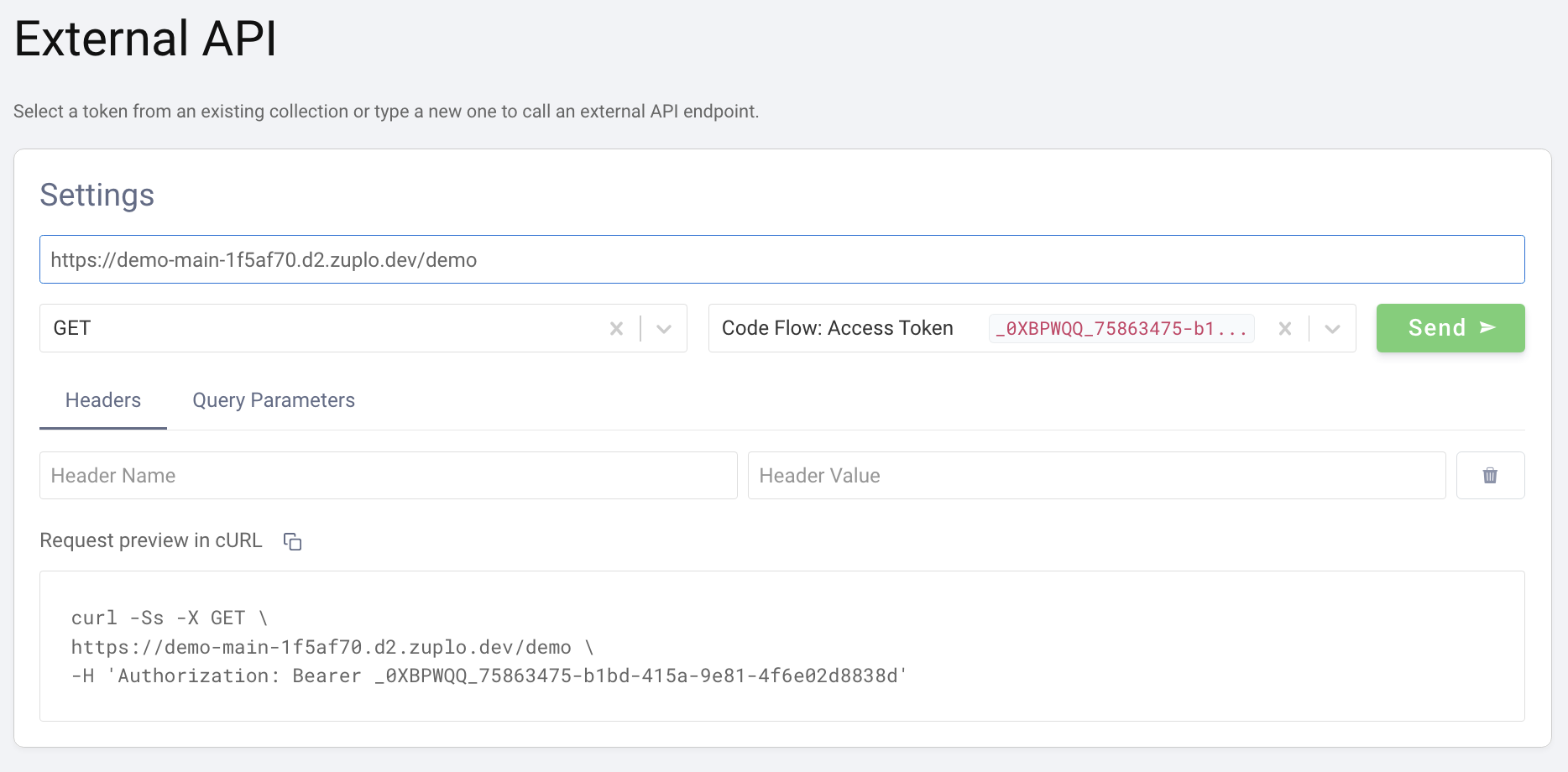
3. Click **Send**. The panel on the right should now display the response from
the API. If the upstream API echoes back what is sent you will see that the
`Authorization` header now contains a JWT instead of the original opaque
token that was sent in the request.
### Conclusion
You have now setup the Curity Phantom Token Pattern for Authentication. Your API
Gateway now accepts an opaque access token in the Authorization header and will
handle obtaining a corresponding signed JWT that will be passed on to the
upstream API.
Read more about [how policies work](/articles/policies)